
Interface Overview
Control Center is organized into four areas you will use most often: the main menu, client list, workspace, and status bar.
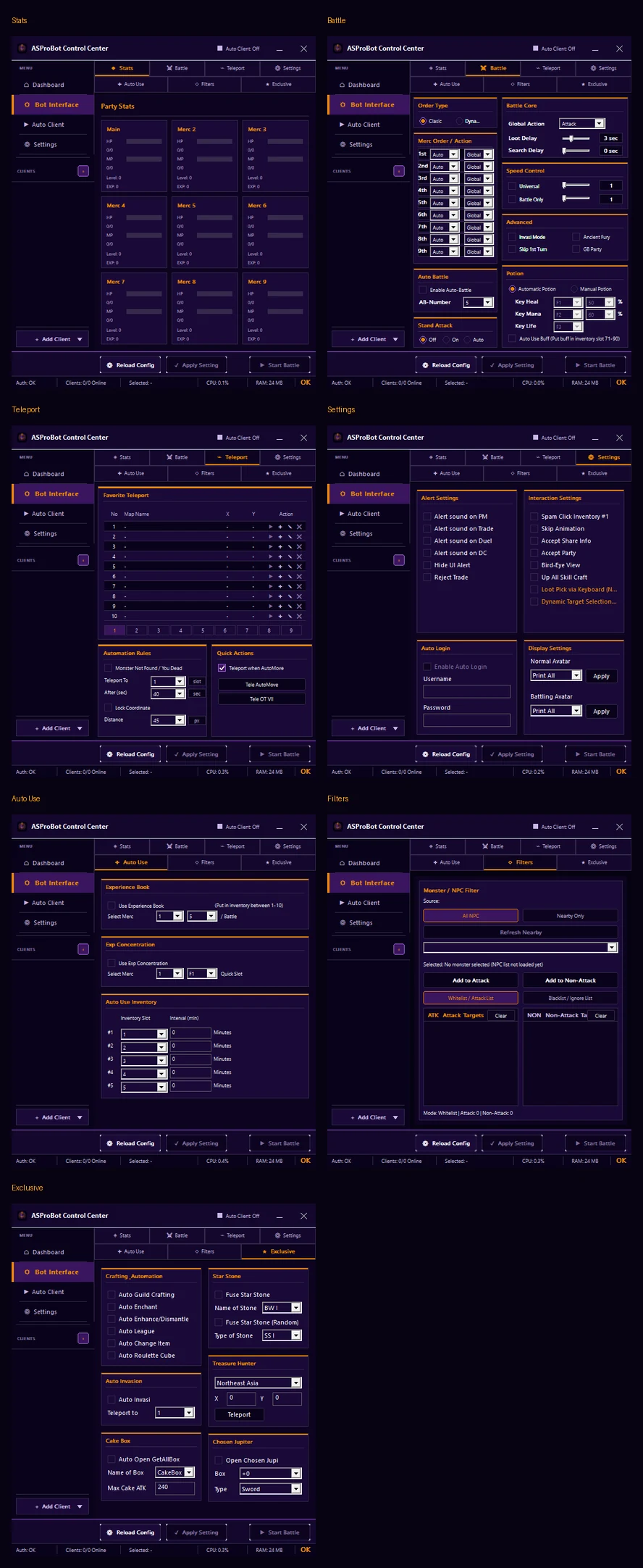
1. Main menu
Use the menu on the left to move between pages.
Dashboard
Use it to review connected clients, subscription status, the Control Center version, Runtime Clients, and updates.
Bot Interface
Use it to configure features for the currently selected client.
The top of Bot Interface contains tabs such as Stats, Battle, Teleport, Settings, Auto Use, Filters, and Exclusive.
IMPORTANT
Before clicking Apply Setting or changing configuration, make sure the correct client is selected in the sidebar.
Auto Client
Use it to create profiles, configure Auto Login and recovery, and apply other profile-based behavior.
Settings
Use it to configure Appearance, AO Client Paths, Auto Shutdown, and updates.
2. Clients list
The Clients section is located in the left sidebar.
From here you can:
- see clients recognized by Control Center,
- view a quick client status,
- select the client you want to manage,
- add a client with + Add Client.
When several clients are running, the name shown here is the main reference before changing configuration.
3. Workspace
The center area changes depending on the selected menu.
In Bot Interface, it displays client configuration. In Dashboard, it shows status summaries. In Auto Client, the same area is used for Profiles and Profile Editor.
4. Bottom action buttons
When Bot Interface is open, the main actions include:
- Reload Config → reloads configuration from the selected client.
- Apply Setting → applies configuration changes.
- Start Battle → starts battle on the selected client when the required conditions are met.
Do not click Apply Setting until you have confirmed the selected client is correct.
Status bar
The bottom bar provides a quick health check:
| Information | Purpose |
|---|---|
| Auth | Shows Control Center authentication state. |
| Clients: online/total | Shows online clients compared with clients detected in the current session. |
| Selected | Shows the client currently being targeted. |
| CPU | CPU usage displayed by Control Center. |
| RAM | Memory usage displayed by Control Center. |
If Auth changes to Issue/Unknown or an issue indicator appears on the right, check Activity & Issues before making unrelated changes.
First-time workflow
Start with this flow:
AO Client Paths
      ↓
+ Add Client
      ↓
Select the client in the sidebar
      ↓
Bot Interface
      ↓
Apply Setting when configuration changed
➡️ Add a Client