Exclusive
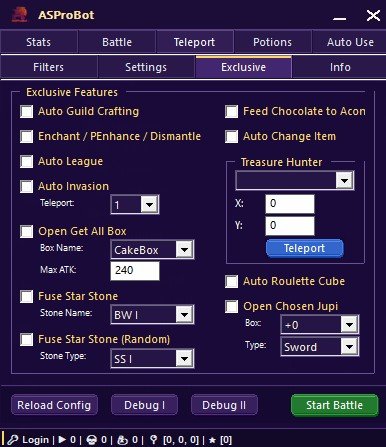
The Exclusive menu contains special additional features that are only available for users with an Exclusive subscription.
If your subscription is still Standard, the features in this tab cannot be clicked or used.
What Exclusive Is Used For
Features in the Exclusive menu are made for more specific advanced automation needs.
From this menu, you can use features such as:
- Auto Guild Crafting
- Enchant / Penhance / Dismantle
- Auto League
- Auto Invasion
- Open Get All Box
- Fuse Star Stone
- Auto Change Item
- Treasure Hunter
- Auto Roulette Cube
- Open Chosen Jupi
IMPORTANT
All features in the Exclusive menu are only available for Exclusive subscriptions. If a feature cannot be clicked, check your subscription type in the Stats or Info menu.
Auto Guild Crafting
Auto Guild Crafting is used to help automate the guild crafting process.
This feature is useful if you often do crafting and want the process to run more conveniently.
Enchant / Penhance / Dismantle
Enchant / Penhance / Dismantle is used to help automate item-related processes.
This feature may be used for:
- Item enchant
- Item penhance
- Item dismantle
Use this feature carefully and make sure the selected item is correct.
WARNING
Always check the item before running this feature. Selecting the wrong item may cause an unintended item to be processed.
Auto League
Auto League is used to help automate activity during league.
Use this feature only if you want the bot to handle league-related activity.
Auto Invasion
Auto Invasion is used to help the character join invasion events automatically.
When an invasion event is active, the bot will move to the invasion location selected in the Teleport option.
After the invasion event ends, the bot will automatically return to the original location.
Simple flow:
- Select the invasion location in the Teleport option.
- Enable Auto Invasion.
- When the invasion event starts, the bot moves to the selected location.
- The bot runs the process based on invasion conditions.
- After the event ends, the bot returns to the original location.
IMPORTANT
Use Auto Invasion only when the invasion event is available. If the event location or schedule does not match, invasion target searching will not work correctly.
Teleport
The Teleport option in Auto Invasion is used to select the invasion location to move to when the event is active.
Choose the location that matches the invasion event you want to join.
Open Get All Box
Open Get All Box is used to open boxes automatically.
This section includes:
- Box Name
- Max ATK
Box Name
Used to select the box type to open.
Example:
Box Name = CakeBoxThe bot will try to open boxes based on the selected box type.
If the selected box is not available in the inventory, the feature will stop and the checkbox will be cleared automatically.
Max ATK
Max ATK is used as the limit for the amount of Attack items in the inventory based on the selected box type.
Example:
Max ATK = 240This means the box opening process will continue until the amount of Attack items in the inventory reaches that value.
If the amount of Attack items is already equal to Max ATK, the box opening process will stop and the checkbox will be cleared automatically.
NOTE
This feature helps prevent box opening from continuing after the target amount of Attack items has been reached.
Fuse Star Stone
Fuse Star Stone is used to fuse Star Stones based on the selected stone type.
This section includes:
- Stone Name
Example:
Stone Name = BW IUse this feature as needed and make sure the selected stone type is correct.
Fuse Star Stone Random
Fuse Star Stone (Random) is used to fuse Star Stones randomly based on the selected stone type.
This section includes:
- Stone Type
Example:
Stone Type = SS IMake sure the selected stone type matches the item you want to use.
Auto Change Item
Auto Change Item is used to help exchange certain items through an item exchange NPC.
This feature is commonly used during events, when users need to exchange a large number of event items for selected rewards.
Normally, item exchange is done one by one. If you have thousands of items to exchange, doing it manually can take a long time.
This feature helps speed up that process.
This feature can be used when:
- The exchange item is available in large quantities.
- The item exchange NPC uses a compatible exchange window.
- The target reward has been selected correctly.
- The exchange process needs to be repeated many times.
NOTE
The NPC may vary. As long as the exchange window is the same and compatible with the feature, Auto Change Item can still be used.
IMPORTANT
Make sure the item to exchange and the selected reward are correct before running this feature.
Treasure Hunter
Treasure Hunter is used to teleport to a specific coordinate.
This section includes:
- Treasure Hunter location or mode selection
- X coordinate
- Y coordinate
- Teleport button
General usage:
- Select the Treasure Hunter location or mode.
- Enter the X coordinate.
- Enter the Y coordinate.
- Click Teleport.
NOTE
Make sure the entered coordinates are correct so the character moves to the intended location.
Auto Roulette Cube
Auto Roulette Cube is used to run the roulette cube process automatically.
Use this feature only when the required item and condition are available.
Open Chosen Jupi
Open Chosen Jupi is used to open Chosen Jupi based on the selected box and type.
This section includes:
- Box
- Type
Example:
Box = +0
Type = Sword
Make sure the selected box and type are correct before running the feature.
If a Feature Cannot Be Clicked
If a feature in the Exclusive tab cannot be clicked, possible causes are:
- The subscription is still Standard.
- The Exclusive license is not active yet.
- The bot has not read the license status successfully.
- The connection to the server is not stable.
- The bot needs to be restarted after license activation.
Check your subscription status from the Stats or Info menu.
Usage Recommendation
Before using Exclusive features:
- Make sure your subscription is Exclusive.
- Make sure the required item or condition is ready.
- Use one feature first.
- Check the result before running another feature.
- Avoid running multiple heavy features at the same time if you are not sure.
Next Step
After understanding Exclusive features, continue to the Info menu to check license status, version, and bot information.
➡️ Info